

How to Start a Business Website in 2026 — Step-by-Step for Non-Tech Owners
Getting a business website up in 2026 is more accessible than it’s ever been. You don’t need to know how to code. You don’t need to hire a developer on day one. What you do need is a clear sequence of steps — because the confusion usually isn’t about skill, it’s about not knowing what order to do things in.
This guide walks you through exactly that. Domain, hosting, design, and launch — in plain language, with no steps skipped.
What You Need Before You Start
Before you touch any website tools, spend 30 minutes pulling a few things together. It’ll save you a lot of back-and-forth later.
You’ll want a clear business name (and ideally a logo, even a rough one). Write down the core pages your site needs — most businesses start with Home, About, Services, and Contact. Gather any photos you want to use, and draft a short paragraph about what you do and who you help. That’s genuinely all you need to start.
If you’re still figuring out your business name, sort that out first. Your domain will be tied to it, and changing domains later is a pain.
Step 1 — Pick and Register Your Domain Name
Your domain is your address on the internet — something like yourbusiness.com. This is the first thing you buy, and it’s usually the cheapest part of the whole setup (around $10–15/year for a standard .com).
What makes a good business domain?
Keep it short. Keep it easy to spell. Ideally, it matches your business name or is close to it. Avoid hyphens — people forget them, and hyphenated domains look a bit dated. Stick with .com if you can. People default to typing .com out of habit, even if you have a .net or .co version.
You don’t want to overthink this. If yourbusiness.com is taken, try yourbusinessco.com or getyourbusiness.com before you go chasing a perfect match. Done is better than perfect here.
Where to register your domain
Popular options include Namecheap, GoDaddy, and Google Domains (now managed by Squarespace). Namecheap tends to have cleaner pricing without as many upsell screens. GoDaddy is widely used but known for pushing extras at checkout — just uncheck what you don’t need.
One thing worth knowing: you don’t have to buy your domain from the same company as your hosting. In fact, many people keep them separate for flexibility. It’s not required, just something to be aware of.
Step 2 — Choose a Hosting Plan
Your hosting is where your website actually lives. Every file, image, and page on your site sits on a server somewhere — hosting is what you pay to rent space on that server.
Types of hosting explained simply
Shared hosting is the cheapest option. Your website shares server resources with other websites. For a new small business site with modest traffic, this is perfectly fine. Providers like Bluehost, Hostinger, and SiteGround offer shared plans starting around $3–10/month. Hostinger in particular tends to offer some of the best value for small business budgets — fast servers, a beginner-friendly dashboard, and free SSL included on all plans.
Managed WordPress hosting is a step up. The host handles technical maintenance — updates, security, backups — so you don’t have to. It’s more expensive (typically $20–50/month to start), but worth it if you’re running WordPress and don’t want to deal with the backend. WP Engine and Kinsta are well-known options in this space.
If you’re comparing specific hosting providers, we’ve broken down Hostinger vs. Bluehost vs. GoDaddy for small businesses in 2026 to help you decide.
What most small businesses actually need
If you’re just getting started and your site is informational (no store, no complex features), shared hosting is enough. If you plan to run WordPress and want a hands-off setup, managed WordPress hosting is worth the extra cost. Either way, make sure any plan you pick includes a free SSL certificate — more on that in a minute.
Step 3 — Design Your Website
This is where most people slow down, and honestly, it makes sense. Design is the most visible part, and there are more options here than anywhere else.
DIY website builders vs. WordPress vs. hiring a pro
DIY website builders like Wix, Squarespace, and Weebly are drag-and-drop tools. No coding. You pick a template, swap in your content, and you have something live within a day or two. The trade-off is limited flexibility — you’re working within their system.
WordPress (specifically WordPress.org, the self-hosted version) powers a massive chunk of the internet. It’s more flexible than website builders, but it has a learning curve. You’ll need to pick a theme, install plugins, and handle some basic setup. Not rocket science, but it takes time. If you’re comparing WordPress to other options, check out our breakdown of Wix vs. WordPress vs. custom build for small businesses.
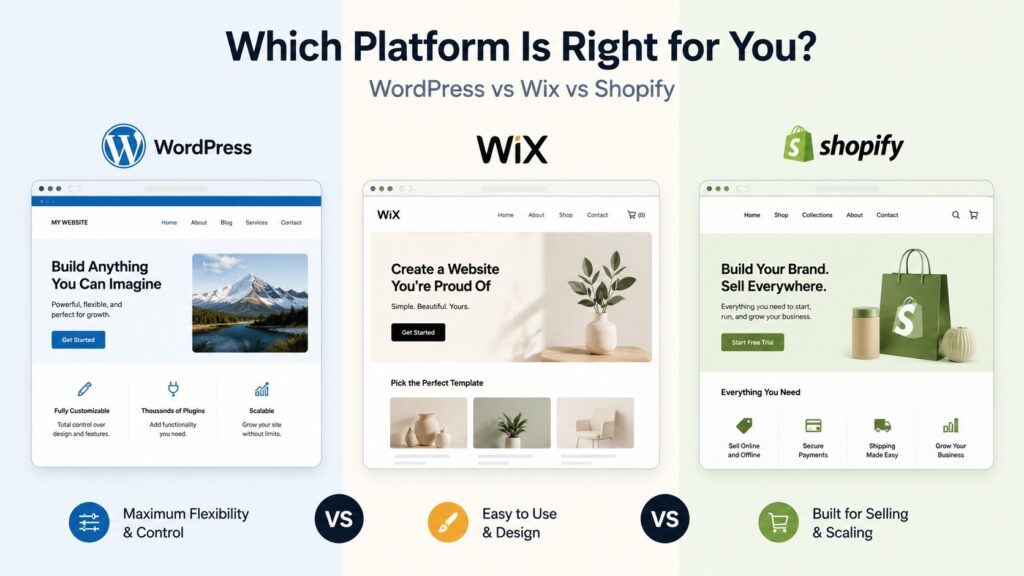
Hiring a professional means you hand off the design work entirely. You get a custom site built for your business without spending weeks learning a platform. The cost is higher upfront, but so is the quality — and you get your time back.
Every business website needs at minimum: a home page that clearly explains what you do, an about page, a services or products page, and a contact page with a real form (not just an email address).
Prefer to skip the design process entirely? Omayik Digital delivers a done-for-you business website in 7 days — you stay focused on your business while we handle everything.
A note on templates vs. custom design
If you go the DIY route, templates are fine. Just customize them enough that your site doesn’t look identical to a thousand others. Swap the stock photos for real images of your business or team when you can. Real photos build trust in a way that stock imagery just doesn’t.
Step 4 — Connect Your Domain and Go Live
Once your hosting is set up and your site is designed, you need to point your domain at your hosting server. This is done by updating your DNS (Domain Name System) settings — basically telling the internet, “when someone types my domain, show them my website.”
What is DNS and why does it take time?
DNS changes don’t happen instantly. After you update the settings (your hosting provider will give you exact instructions), it can take anywhere from a few minutes to 48 hours to fully propagate. Most of the time it’s much faster — a few hours — but don’t schedule your launch announcement for the same afternoon.
If your domain and hosting are with the same provider, this step is often automatic or takes a single click.
Your pre-launch checklist
Before you announce anything, run through these:
- SSL certificate active — your site should load with
https://nothttp://. Most hosts include this free. Google treats HTTPS as a basic trust signal. - Site looks right on mobile — pull it up on your phone. If buttons are tiny and text is cut off, fix it before launch.
- Contact form actually works — send yourself a test message. You’d be surprised how often forms break silently.
- All links work — click every button and menu item. Broken links on a new site are embarrassing and bad for SEO.
- Privacy policy page exists — if you’re collecting any data (even just a contact form), you legally need one. Many website builders have templates. The FTC has guidance on this at ftc.gov.
- Google Analytics connected — set this up before you launch so you’re collecting data from day one, not playing catch-up.
- Google Search Console verified — lets Google know your site exists and helps you track how it appears in search.
- Favicon set — the small icon that appears in browser tabs. Small detail, but it makes your site look finished.
How Long Does This Actually Take?
Here’s an honest breakdown by step, not a best-case scenario:
| Step | DIY time estimate |
|---|---|
| Picking and buying a domain | 1–3 hours |
| Setting up hosting | 30 min – 1 hour |
| Designing the site (builder/WordPress) | 1–4 weeks (part-time) |
| Writing your content | 3–10 hours |
| Pre-launch checklist | 2–4 hours |
| DNS propagation | Up to 48 hours |
Most business owners underestimate the design and content stages. It’s not because the tools are hard — it’s because you’re making decisions about your brand while also learning a new platform. Factor that in.
If you hire a professional, the design timeline shrinks significantly. You still need to provide content and feedback, but the technical work is off your plate.
How Much Does a Business Website Cost in 2026?
These are rough estimates — actual pricing varies by provider and what features you need.
| Route | Typical cost range |
|---|---|
| DIY website builder (Wix, Squarespace) | $150–400/year |
| Self-hosted WordPress (theme + hosting) | $200–600/year |
| WordPress + premium theme + plugins | $400–1,000+ upfront |
| Professional agency or freelancer | $1,500–10,000+ (one-time) |
For a detailed breakdown, see our full guide on how much a business website costs.
The cheapest option isn’t always the right option. A free or very cheap builder might cost you more in lost leads if it loads slowly, looks unprofessional, or is hard to update later.
Common Mistakes to Avoid
Buying your domain and hosting from the same place without thinking. It’s convenient, but you lose flexibility. If you ever want to switch hosts, your domain is tied to them. Keep them separate if you can.
Skipping SSL. An HTTP site gets flagged as “Not Secure” in Chrome. That’s enough to make a visitor leave without reading a word.
Launching without a mobile check. More than half of web traffic is on mobile. If your site doesn’t work well on a phone, you’re losing people.
Using a generic contact email instead of a business one. A @gmail.com address on a business site looks unprofessional. Most hosting plans let you create a yourname@yourbusiness.com email for free or close to it.
Not setting up Google Analytics. You can’t improve what you can’t measure. Set it up before launch so you have baseline data.
Frequently Asked Questions
Do I need to know how to code to build a business website? No. Website builders like Wix and Squarespace require zero coding. Even WordPress, which has more moving parts, can be set up and managed without writing a single line of code using modern themes and page builders like Elementor or Divi.
Can I use a free website builder for my business? Free plans exist, but they come with trade-offs — your site will have the builder’s branding in the URL (like yourbusiness.wixsite.com), and you’ll have limited customization. For a business, spending $15–25/month on a paid plan is worth it just to get your own domain and look legitimate.
What is the difference between a domain name and web hosting? Your domain is your address (what people type to find you). Your hosting is the building (where your website’s files actually live). You need both. You can buy them from different companies — they just need to be connected via DNS settings.
How long does it take to build a small business website? With a website builder and clear content ready, you could have something live in a week. With WordPress, plan for two to four weeks if you’re doing it yourself part-time. Hiring a professional agency can cut that to one to two weeks depending on their process.
Do I need a privacy policy on my website? Yes, in most cases. If your site collects any personal information — even just a name and email through a contact form — you should have a privacy policy. The FTC provides guidance for U.S. businesses. Many website builders include a basic privacy policy template you can customize.
Wrapping Up
Getting a business website live is a four-step process: buy a domain, set up hosting, design the site, and launch it after checking the basics. None of these steps require technical expertise — they just require doing them in the right order.
If you want to shortcut the whole thing, Omayik Digital builds done-for-you business websites in 7 days. But if you’re going the DIY route, this guide has everything you need to get started today.
Published by Omayik Digital LLC | omayikdigital.com
Leave a Reply